Colômbia
O pacote de localização colombiana do Odoo fornece recursos contábeis, fiscais e legais para bancos de dados na Colômbia - como plano de contas, impostos e faturação eletrônica. A localização possui os seguintes pré-requisitos ao usar a solução DIAN Software Próprio com Odoo:
Be registered in the RUT (Registro Único Tributario) with a valid NIT (El Número de Identificación Tributaria).
Have a valid digital signature certificate approved by the ONAC.
Register and get enabled by completing the certification process required by the DIAN (Dirección de Impuestos y Aduanas Nacionales).
For more information on how to complete the certification process for the DIAN (Dirección de Impuestos y Aduanas Nacionales) module, review the following webinar
Documentation on e-invoicing's legality and compliance in Colombia
Configuração
Instalação de módulos
Instale <general/install> os seguintes módulos para obter todos os recursos da localização colombiana:
Name |
Technical name |
Description |
|---|---|---|
Colombia - Accounting |
l10n_co |
Default fiscal localization package <fiscal_localizations/packages>. This module adds the base accounting features for the Colombian localization: chart of accounts, taxes, withholdings, and identification document type. |
Electronic invoicing for Colombia with DIAN |
l10n_co_dian |
This module includes the features required for integration with the DIAN (Dirección de Impuestos y Aduanas Nacionales) as its own software, and adds the ability to generate electronic invoices and support documents based on DIAN (Dirección de Impuestos y Aduanas Nacionales) regulations. |
Colombian - Accounting Reports |
l10n_co_reports |
This module includes accounting reports for sending certifications to suppliers for withholdings applied. |
Electronic invoicing for Colombia with Carvajal |
l10n_co_edi |
This module includes the features required for integration with Carvajal. Adds the ability to generate the electronic invoices and support documents, based on DIAN (Dirección de Impuestos y Aduanas Nacionales) regulations. |
Colombian - Point of Sale |
l10n_co_pos |
This module includes Point of Sale receipts for Colombian localization. |
Informações sobre a empresa
Para configurar as informações da sua empresa:
Access your company's contact form:
Go to the Contacts app and search for your company or;
Go to the Settings app, activate the developer mode <developer-mode>, and in the Companies section, click Update Info. Then, in the Contact field, click on the company name.
Configure the following information:
Company Name.
Address: Including City, Department, and ZIP code.
Identification Number: Select the Identification Type (NIT, Cédula de Ciudadanía, Registro Civil, etc.). When the Identification Type is NIT, the Identification Number must have the verification digit at the end of the ID prefixed by a hyphen (-).
Go to the Sales & Purchase tab and configure the Fiscal Information:
Obligaciones y Responsabilidades: Select the fiscal responsibility for the company. (O-13 Gran Contribuyente, O-15 Autorretenedor, O-23 Agente de retención IVA, O-47 Regimen de tributación simple, R-99-PN No Aplica).
Gran Contribuyente: If the company is Gran Contribuyente, enable this option.
Fiscal Regimen: Select the Tribute Name for the company (IVA, INC, IVA e INC, or No Aplica)
Commercial Name: If the company uses a specific commercial name and it needs to be displayed in the invoice.
Credenciais de faturamento eletrônico e ambiente DIAN (Dirección de Impuestos y Aduanas Nacionales)
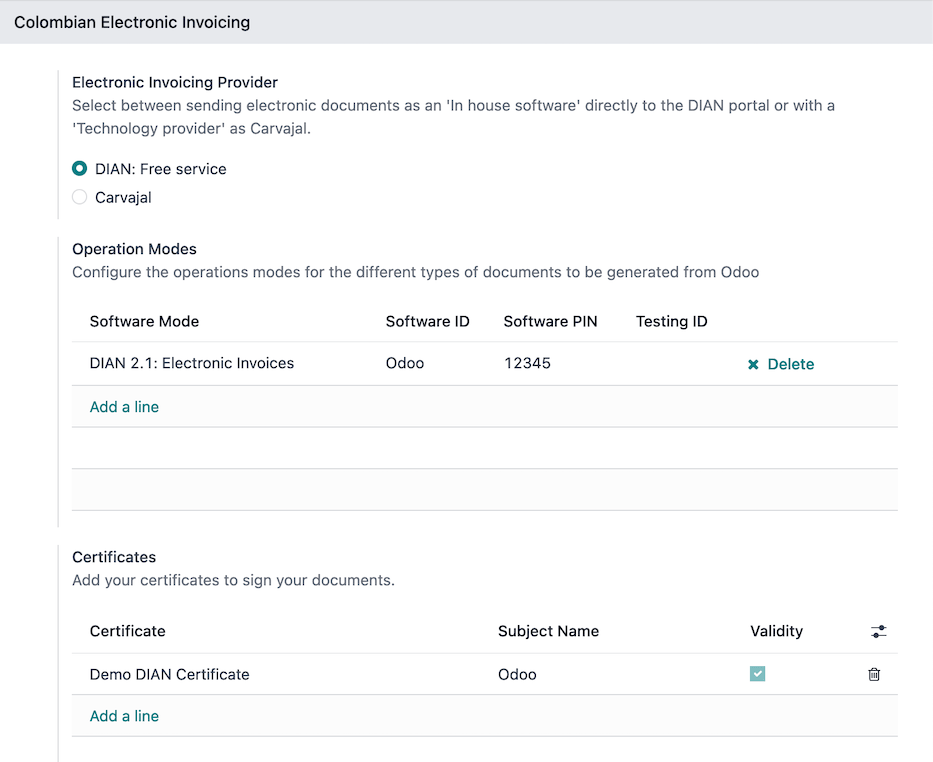
Para configurar as credenciais de usuário a serem usadas para se conectar ao serviço web do DIAN (Dirección de Impuestos y Aduanas Nacionales) e ao ambiente do DIAN (Dirección de Impuestos y Aduanas Nacionales), navegue até e role até a seção Faturamento Eletrônico Colombiano. Em seguida, siga estas etapas:
Select DIAN: Free Service as the Electronic Invoicing Provider.
Configure the Operation Modes for the respective types of documents (electronic invoices or support documents) to be generated from Odoo. Click Add a line, then fill in the fields:
Software Mode: the type of document to be generated with the operation mode.
Software ID: the ID generated by DIAN (Dirección de Impuestos y Aduanas Nacionales) for the specific operation mode.
Software PIN: the PIN selected in the operation mode configuration in the DIAN (Dirección de Impuestos y Aduanas Nacionales) portal.
Testing ID: the testing ID generated by DIAN (Dirección de Impuestos y Aduanas Nacionales) and obtained after testing the operation mode.
Configure the available Certificates to sign the electronic documents. Click Add a line, then fill in the fields:
Name: the name of the certificate.
Certificate: upload the certificate file in PEM format. In the Private Key field that appears on the screen, select an existing private key or create a new one. To do so, enter a key name and select Create and edit. Then, in the Create Private Key wizard, upload a valid Key file and click Save & Close.
Configure the DIAN (Dirección de Impuestos y Aduanas Nacionales) environment; the DIAN (Dirección de Impuestos y Aduanas Nacionales) electronic invoicing module offers four different DIAN (Dirección de Impuestos y Aduanas Nacionales) environments to connect with:
DIAN demo mode: This environment allows to test electronic invoicing workflows using a demo digital certificate. Files are created and accepted automatically and are not sent to any DIAN (Dirección de Impuestos y Aduanas Nacionales) environment. Every internal validation can be tested. To activate it, tick the DIAN Demo Mode checkbox.
A caixa de seleção DIAN Demo Mode fica oculta quando a caixa de seleção Test environment está habilitada.
Certification environment: This environment is useful to pass the DIAN (Dirección de Impuestos y Aduanas Nacionales) certification process and obtain the Enabled status to invoice from Odoo. To activate it, enable both the Test environment and the Activate the certification process checkboxes.
Testing environment: This environment allows reproducing electronic invoicing flows and validations in the DIAN (Dirección de Impuestos y Aduanas Nacionales) testing portal. To activate it, enable only the Test Environment checkbox.
Production environment: This environment allows generating valid electronic documents. To activate it, disable both the Test environment and the Activate the certification process checkboxes.
Não ative DIAN Demo Mode em um banco de dados de produção. Este modo é destinado apenas para uso em ambientes de teste.
Para configurações de faturação eletrônica usando a solução Carvajal, consulte o seguinte vídeo: Configuración de Facturación Electrónica - Localización de Colombia.
Dados mestres
Contatos
Configure os seguintes campos no formulário de contato:
Identification Number (VAT): Select the identification number type and enter the identification number. If the identification number type is NIT, the identification number must include the verification digit at the end, prefixed by a hyphen (-).
Fiscal Information fields <localization/colombia/configuration/company> in the Sales & Purchase tab.
Produtos
Acesse o formulário do produto via e garanta que o campo UNSPSC Category (encontrado na aba Accounting) ou o campo Internal Reference (na aba General Information) estejam configurados.
Impostos
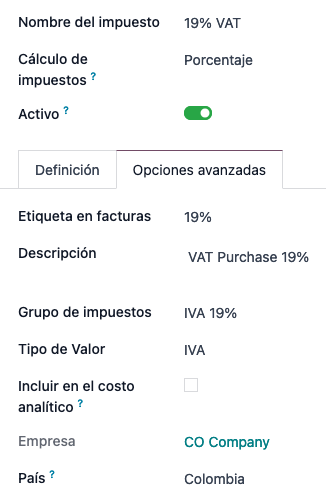
Para criar ou modificar impostos, vá para e selecione o imposto relacionado.
Se as transações de vendas incluirem produtos com impostos, configure o campo Value Type na aba Advanced Options. Tipos de impostos de retenção (ICA, IVA, Fuente) também estão incluídos. Esta configuração é usada para exibir os impostos corretamente na fatura.
Diários de vendas
Uma vez que DIAN (Dirección de Impuestos y Aduanas Nacionales) tenha atribuído a sequência oficial e prefixo para a resolução de fatura eletrônica, os diários de vendas relacionados às faturas devem ser atualizados no Odoo. Para isso, navegue até e selecione um diário de vendas existente ou crie um novo com o botão Create.
No formulário de diário de vendas, digite o Journal Name e Type, depois defina um Short Code único na aba Journals Entries. Depois, configure os seguintes dados na aba Advanced Settings:
Electronic invoicing: enable UBL 2.1 (Colombia).
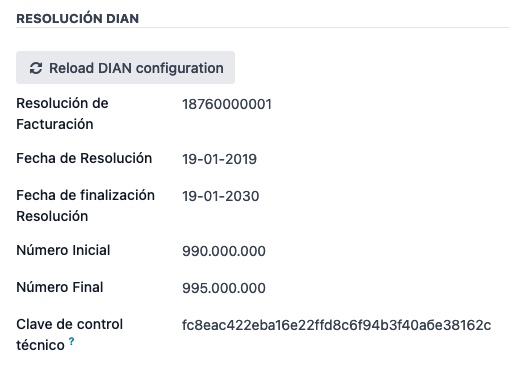
Invoicing Resolution: resolution number issued by DIAN (Dirección de Impuestos y Aduanas Nacionales) to the company via their test set.
Resolution Date: initial effective date of the resolution.
Resolution End Date: end date of the resolution's validity.
Range of Numbering (minimum): first authorized invoice number.
Range of Numbering (maximum): last authorized invoice number.
Technical Key: control key received from the DIAN (Dirección de Impuestos y Aduanas Nacionales) portal test set or from their web service in case of the production environment.
Quando o banco de dados está configurado para o ambiente de produção <localization/colombia/einvoice-configuration>, em vez de configurar esses campos manualmente, clique no botão Recarregar configuração DIAN para obter as informações de resolução DIAN (Dirección de Impuestos y Aduanas Nacionales) do serviço web DIAN (Dirección de Impuestos y Aduanas Nacionales).
Diários de compras
Assim que a DIAN (Dirección de Impuestos y Aduanas Nacionales) atribuir a sequência e o prefixo oficiais para o documento de suporte relacionado a contas a pagar, os diários de compra relacionados aos seus documentos de suporte precisam ser atualizados no Odoo. O processo é semelhante à configuração dos diários de vendas <localization/colombia/co-journals>.
Para mais informações sobre diários de documentos de suporte usando a solução Carvajal, consulte o vídeo Documento Soporte - Localización de Colombia.
Plano de contas
O plano de contas é instalado por padrão como parte do módulo de localização. As contas são mapeadas automaticamente em impostos, conta a pagar padrão e conta a receber padrão. O plano de contas para a Colômbia é baseado no PUC (Plan Unico de Cuentas).
Multimoedas
A taxa de câmbio oficial para a Colômbia é fornecida pelo Banco de la República.
Para ativar atualizações automáticas de taxa de câmbio, siga estas etapas:
Go to .
Navigate to the Currencies section and enable Automatic Currency Rates.
Ensure that [CO] Bank of the Republic is selected as the Service.
Select an Interval for how frequently the currency rate should be automatically updated.
Fluxos de trabalho principais
Notas fiscais eletrônicas
A seguir está um detalhamento do fluxo de trabalho principal para notas fiscais eletrônicas com a localização colombiana:
The user creates an invoice.
Odoo generates the legal XML file.
Odoo generates the CUFE (Invoice Electronic Code) with the electronic signature.
Odoo sends a notification to DIAN.
DIAN (Dirección de Impuestos y Aduanas Nacionales) validates the invoice.
DIAN (Dirección de Impuestos y Aduanas Nacionales) accepts or rejects the invoice.
Odoo generates the PDF invoice with a QR code.
Odoo compresses the attached document (containing the sent XML file and the DIAN validation response) and the fiscal valid PDF into a .zip file.
The user sends the invoice (.zip file) via Odoo to the acquirer.
Criação de fatura
As faturas eletrônicas são geradas e enviadas tanto para DIAN (Dirección de Impuestos y Aduanas Nacionales) quanto para o cliente. Esses documentos podem ser criados a partir do pedido de venda ou gerados manualmente. Para criar uma nova fatura, acesse e selecione Criar. No formulário de fatura, configure os seguintes campos:
Customer: customer's information.
Journal: journal used for electronic invoices.
Electronic Invoice Type: Select the type of document. By default, Factura de Venta is selected.
Invoice Lines: Specify the products with the correct taxes.
Por exemplo, formatar a sequência de SETP/2024/00001 para SETP1.
Quando concluído, clique em Confirmar.
Envio de fatura eletrônica
Após a confirmação da fatura <localization/colombia/invoice-creation>, clique em Enviar. No assistente exibido, certifique-se de ativar as caixas de seleção DIAN e Email para enviar um XML para o serviço web DIAN (Dirección de Impuestos y Aduanas Nacionales) e a fatura validada para o email fiscal do cliente e clique em Enviar. Depois:
The XML document is created.
The CUFE is generated.
The XML is processed synchronously by the DIAN (Dirección de Impuestos y Aduanas Nacionales).
If accepted, the file is displayed in the chatter and the email to the client with the corresponding .zip file.
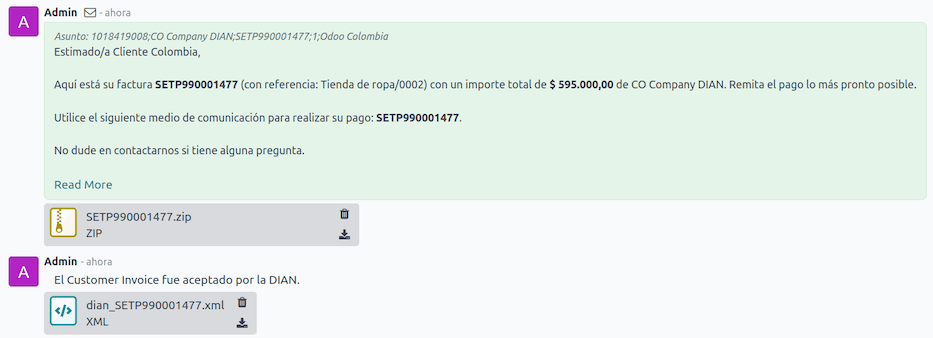
A aba DIAN exibe o seguinte:
Signed Date: timestamp recorded of the XML creation.
Status: Status result obtained in the DIAN (Dirección de Impuestos y Aduanas Nacionales) response. If the invoice was rejected, the error messages can be seen here.
Testing Environment: To know if the document sent was delivered to the DIAN (Dirección de Impuestos y Aduanas Nacionales) testing environment.
Certification Process: To know if the document was sent as part of the certification process with the DIAN (Dirección de Impuestos y Aduanas Nacionales).
Download: To download the sent XML file, even if the DIAN (Dirección de Impuestos y Aduanas Nacionales) result was rejected.
Fetch Attached Document: To download the generated attached document file included in the delivered .zip file to the client.

Notas de crédito
O processo para notas de crédito é o mesmo que para faturas. Para criar uma nota de crédito com referência a uma fatura, acesse . Na fatura, clique em Adicionar Nota de Crédito e complete as seguintes informações:
Credit Method: Select the type of credit method.
Partial Refund: Use this option when it is a partial amount.
Full Refund: Use this option if the credit note is for the full amount.
Full refund and new draft invoice: Use this option if the credit note is auto-validated and reconciled with the invoice. The original invoice is duplicated as a new draft.
Reason: Enter the reason for the credit note.
Reversal Date: Select if you want a specific date for the credit note or if it is the journal entry date.
Use Specific Journal: Select the journal for your credit note or leave it empty if you want to use the same journal as the original invoice.
Refund Date: If you chose a specific date, select the date for the refund.
Após revisar, clique no botão Reverter.
Notas de débito
O processo para notas de débito é similar ao de notas de crédito. Para criar uma nota de débito com referência a uma fatura, acesse . Na fatura, clique no botão Adicionar Nota de Débito e digite as seguintes informações:
Reason: Type the reason for the debit note.
Debit note date: Select the specific options.
Copy lines: Select this option if you need to register a debit note with the same lines of invoice.
Use Specific Journal: Select the printer point for your debit note, or leave it empty if you want to use the same journal as the original invoice.
Quando concluído, clique em Criar Nota de Débito.
Documento de apoio para contas a pagar
Com dados mestres, credenciais e o diário de compras configurados para documentos de apoio relacionados a contas a pagar, você pode começar a usar documentos de apoio.
Documentos de apoio para contas a pagar podem ser criados a partir de sua ordem de compra ou manualmente. Acesse e preencha os seguintes dados:
Vendor: Enter the vendor's information.
Bill Date: Select the date of the bill.
Journal: Select the journal for support documents related to the vendor bills.
Invoiced Lines: Specify the products with the correct taxes.
Após revisar, clique no botão Confirmar. Após a confirmação, um arquivo XML é criado e automaticamente enviado para Carvajal.
Erros comuns
Durante a validação do XML, os erros mais comuns estão relacionados a dados mestres <localization/colombia/master-data> faltantes. Nesses casos, uma mensagem de erro de validação é exibida e o envio é bloqueado.
Se a fatura foi enviada e definida como Rejeitada pela DIAN (Dirección de Impuestos y Aduanas Nacionales), as mensagens de erro são visíveis ao clicar no ícone fa-info-circle (círculo de informações) ao lado do campo Status na aba DIAN. Usando os códigos de erro informados, é possível revisar soluções a aplicar antes de reenviar.
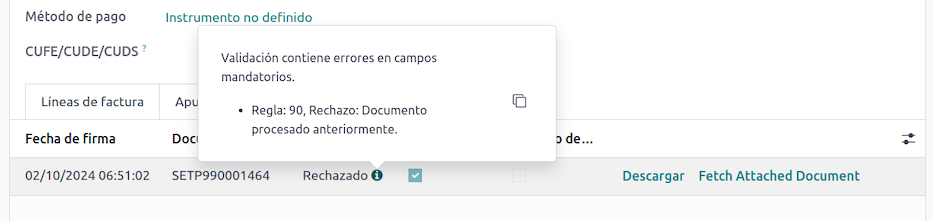
Após os dados mestres ou outros problemas serem corrigidos, é possível reprocessar o XML novamente. Faça isso seguindo o fluxo de envio de fatura eletrônica <localization/colombia/send-electronic-invoice>.
Relatórios financeiros
Certificado de Retención en ICA
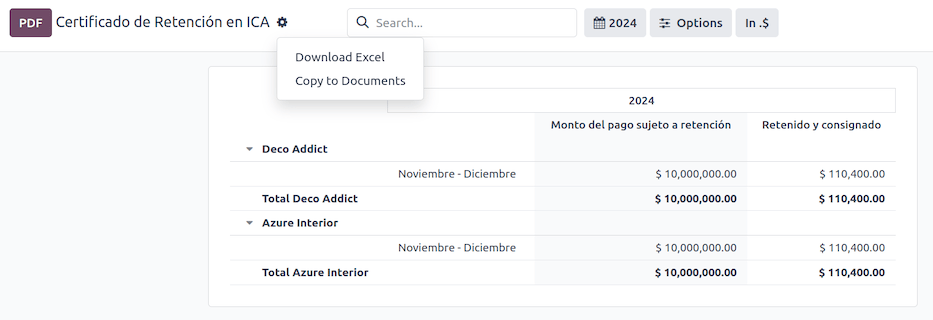
Este relatório é uma certificação para fornecedores de retenções realizadas para o imposto de Indústria e Comércio (ICA) colombiano. O relatório pode ser encontrado em .
Clique no ícone fa-cog (engrenagem) para exibir opções para Baixar Excel e Copiar para Documentos.
Certificado de Retención en IVA
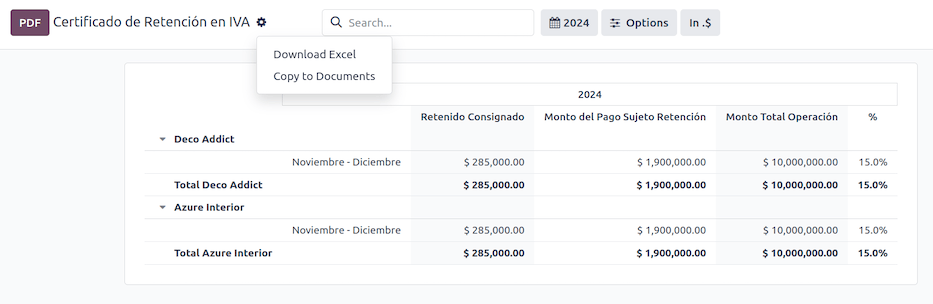
Este relatório emite um certificado sobre o valor retido de fornecedores para retenção de IVA. O relatório pode ser encontrado em .
Clique no ícone fa-cog (engrenagem) para exibir opções para Baixar Excel e Copiar para Documentos.
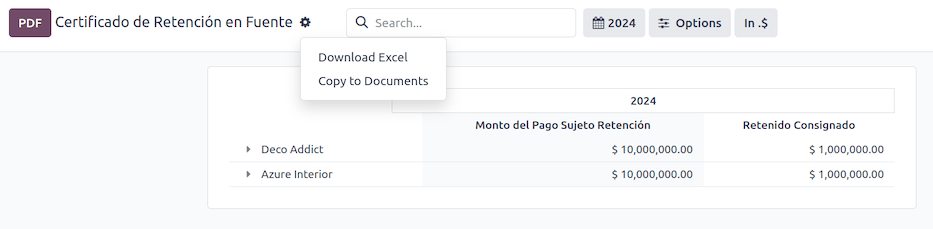
Certificado de Retención en la Fuente
Este certificado é emitido aos parceiros pela retenção na fonte que realizaram. O relatório pode ser encontrado em .
Clique no ícone fa-cog (engrenagem) para exibir opções para Baixar Excel e Copiar para Documentos.