Solicitar folga
Quando funcionários desejam tirar folga, eles primeiro enviam uma solicitação de folga por meio do aplicativo Time Off. Após sua solicitação ser enviada, ela é revisada pelo gerente do funcionário ou pelo seu responsável de folgas (dependendo de quem é o aprovador de folgas do funcionário <employees/approvers>).
Enviar solicitação de folga
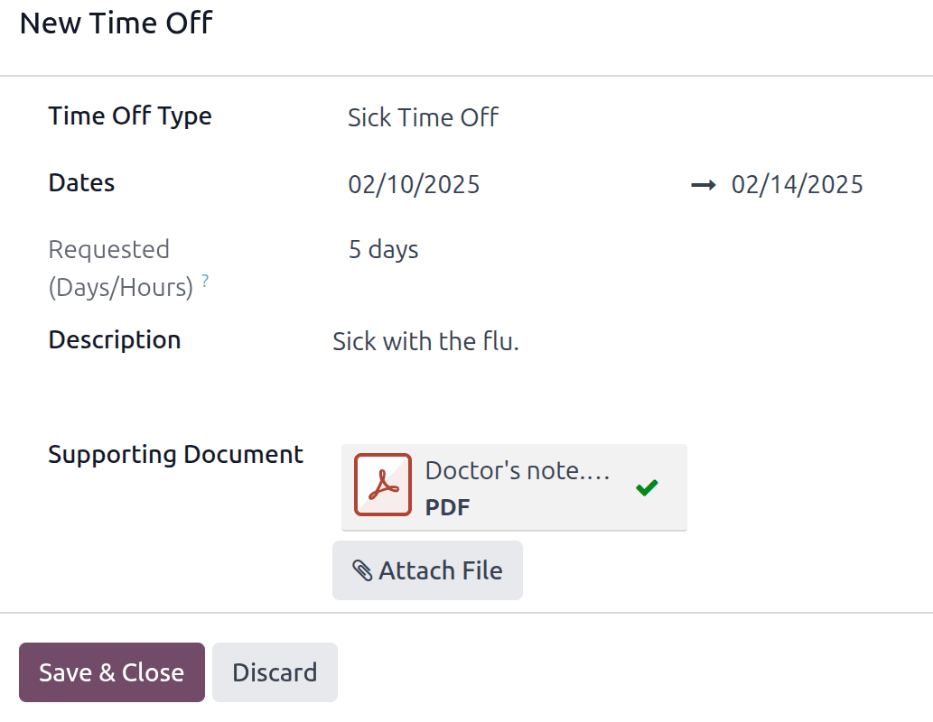
Para solicitar folga, clique no botão Novo no canto superior esquerdo do painel do aplicativo Time Off e um formulário pop-up Nova Folga é carregado.
Preencha os campos do formulário <time_off/fields> e clique em Salvar e Fechar para enviar a solicitação.
Campos de folga
Digite as seguintes informações no formulário de solicitação Nova folga:
Time Off Type: Using the drop-down menu, select the type of time off being requested.
Dates: Enter the dates that the time off falls under. There are two fields to populate: the start and end dates. Click on either date field and a popover calendar appears.
Clique na data de início e, em seguida, na data de término. As datas de início e término selecionadas são circuladas e as datas entre elas são destacadas (se aplicável).
Se estiver solicitando folga apenas para um único dia, clique na data de início e, em seguida, clique novamente na mesma data para a data final.
Quando as datas corretas forem selecionadas, clique no botão Aplicar.
As datas selecionadas então preenchem as duas partes do campo Datas.
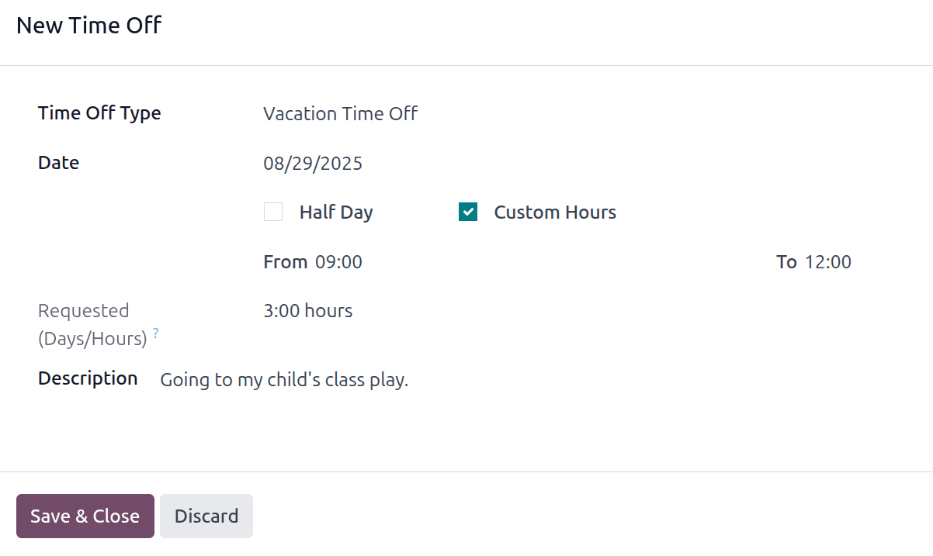
Se o tipo de folga selecionado estiver configurado para que a folga seja tirada em horas, os dois campos a seguir também serão exibidos:
Half Day: If the time off request is for a half day, tick this checkbox. When this is selected, the second date field disappears, and is replaced with a drop-down menu. From that drop-down menu, select either Morning or Afternoon to indicate which half of the day is being requested off.
Custom Hours: If the time off requested is not a whole or half day, tick this checkbox. If selected, a From and To field appears beneath this option. Using the drop-down menu, select the start and end time for the time off request.
Requested (Days/Hours): This field updates automatically once the Date section is completed. If the Date section is modified, this section automatically updates to reflect the total time off requested. This field is in either hours or days, depending on how the selected Time Off Type is configured.
Description: Enter a description for the time off request. This should include any details that managers and approvers may need to approve the request.
Supporting Document: This field only appears if the Time Off Type selected allows for the attachment of documents. Click the fa-paperclip Attach File button, and a file explorer window appears.
Navegue até os arquivos que devem ser anexados, selecione-os e clique no botão Abrir. Os arquivos aparecerão no formulário de solicitação de folga. Se necessário, é possível anexar diversos documentos.