Authorize.Net
Authorize.Net é um provedor de solução de pagamento online baseado nos Estados Unidos, permitindo que empresas aceitem cartões de crédito.
Configuração
payment_providers/add_new
Guia de credenciais
O Odoo precisa de suas Credenciais de API e Chaves para se conectar à sua conta Authorize.Net, que compreendem:
API Login ID: The ID solely used to identify the account with Authorize.Net.
API Transaction Key
API Signature Key
API Client Key
Para recuperá-las, faça login em sua conta Authorize.Net, vá para , gere sua Chave de Transação e Chave de Assinatura, e cole-as nos campos relacionados no Odoo. Em seguida, clique em Gerar Chave de Cliente.
Se você usar o Modo de Teste com uma conta regular, isso resultará no seguinte erro: O ID de login do comerciante ou a senha é inválido ou a conta está inativa.
Aba Configuração
Colocar um cartão em espera
Com Authorize.Net, você pode ativar a captura manual <payment_providers/manual_capture>. Se ativada, os fundos são reservados por 30 dias no cartão do cliente, mas não são cobrados ainda.
Pagamentos ACH (apenas EUA)
ACH (automated clearing house) é um sistema de transferência eletrônica de fundos usado entre contas bancárias nos Estados Unidos.
Configuração
Para dar aos clientes a possibilidade de pagar usando ACH, inscreva-se no serviço Authorize.Net eCheck. Depois que o eCheck for ativado, duplique o provedor de pagamento Authorize.Net configurado anteriormente no Odoo acessando . Em seguida, clique no ícone de engrenagem (⛭) e selecione Duplicar. Altere o nome do provedor para diferenciar as duas versões (por exemplo, Authorize.net - Bancos).
Quando pronto, altere o Estado do provedor para Ativado para uma conta regular ou Modo de Teste para uma conta sandbox.
Importar um extrato Authorize.Net
Exportar do Authorize.Net
:download:`Baixe o modelo de importação Excel. <authorize/authorize-net-magic-sheet.xlsx>`
Log in to Authorize.Net.
Go to .
Define an export range using an opening and closing batch settlement. All transactions within the two batch settlements will be exported to Odoo.
Select all transactions within the desired range, copy them, and paste them into the Report 1 Download sheet of the Excel import template <authorize-import-template>.
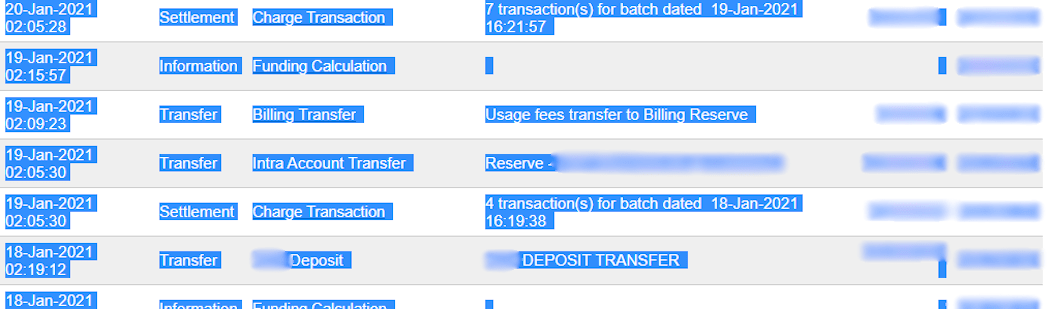
Neste caso, o primeiro lote (01/01/2021) do ano pertence à liquidação de 12/31/2020, portanto a liquidação de abertura é de 12/31/2020.
Depois que os dados estiverem na planilha Report 1 Download:
Go to the Transaction Search tab on Authorize.Net.
Under the Settlement Date section, select the previously used range of batch settlement dates in the From: and To: fields and click Search.
When the list has been generated, click Download to File.
In the pop-up window, select Expanded Fields with CAVV Response/Comma Separated, enable Include Column Headings, and click Submit.
Open the text file, select All, copy the data, and paste it into the Report 2 Download sheet of the Excel import template <authorize-import-template>.
Transit lines are automatically filled in and updated in the transit for report 1 and transit for report 2 sheets of the Excel import template <authorize-import-template>. Make sure all entries are present, and if not, copy the formula from previously filled-in lines of the transit for report 1 or 2 sheets and paste it into the empty lines.
Importar para o Odoo
Para importar os dados para o Odoo:
Open the Excel import template <authorize-import-template>.
Copy the data from the transit for report 2 sheet and use paste special to only paste the values in the Odoo Import to CSV sheet.
Look for blue cells in the Odoo Import to CSV sheet. These are chargeback entries without any reference number. As they cannot be imported as such, go to .
Look for Charge Transaction/Chargeback, and click it.
Copy the invoice description, paste it into the Label cell of the Odoo Import to CSV sheet, and add Chargeback / before the description.
If there are multiple invoices, add a line into the Excel import template <authorize-import-template> for each invoice and copy/paste the description into each respective Label line.
Next, delete zero transaction and void transaction line items, and change the format of the Amount column in the Odoo Import to CSV sheet to Number.
Go back to and search again for the previously used batch settlements dates.
Verify that the batch settlement dates on eCheck.Net match the related payments' dates found in the Date column of the Odoo Import to CSV.
If it does not match, replace the date with the one from eCheck.Net. Sort the column by date, and make sure the format is MM/DD/YYYY.
Copy the data - column headings included - from the Odoo Import to CSV sheet, paste it into a new Excel file, and save it using the CSV format.
Open the Accounting app, go to , tick the Authorize.Net box, and click . Select the CSV file and upload it into Odoo.