USPS integration
Integrating a USPS account with Odoo's Inventory app makes it possible to calculate delivery rates and generate delivery labels within Odoo. This is accomplished by enabling the USPS shipping connector, then configuring at least one delivery method.
Ativar o conector de envio
To enable the USPS shipping connector, open the app from the main Odoo dashboard. In the Search field, search for USPS and click Install.
After the shipping connector is installed, the USPS connector is enabled by default.
Configure USPS business account
A USPS business account is required to obtain the information needed to fill out the fields in the delivery method form <inventory/shipping_receiving/usps-configuration>. To create a new account, navigate to USPS's Create Your USPS.com Account page, select the Business Account option, then follow the steps.
Create a developer app
After the USPS Business Customer Onboarding Portal (COP) is set up, sign in to the USPS COP to manage business account information and access the USPS APIs.
On this page, make note of the Customer Registration ID (CRID), the Master Mailer ID, and the Label Mailer ID.
Click the My Apps link at the top of the screen.
Open the Developer Apps tab. Click the Add App button. In the Add App pop-up window, specify an App Name. Select the APIs to use. Finally, click the Add App button.
A window opens, titled after the app name. Keep this window open as the delivery method is configured. The Consumer Key and Consumer Secret will be necessary in the delivery method form.
Configurar método de entrega
Once the USPS shipping connector is enabled, at least one delivery method must be configured. After doing so, the delivery method can be included in sales orders (SOs) and used to compute delivery costs and print shipping labels.
Open or create a new delivery method. Navigate to , then open an existing USPS delivery method to display its form. Alternatively, click New to open a blank form and configure a new delivery method.
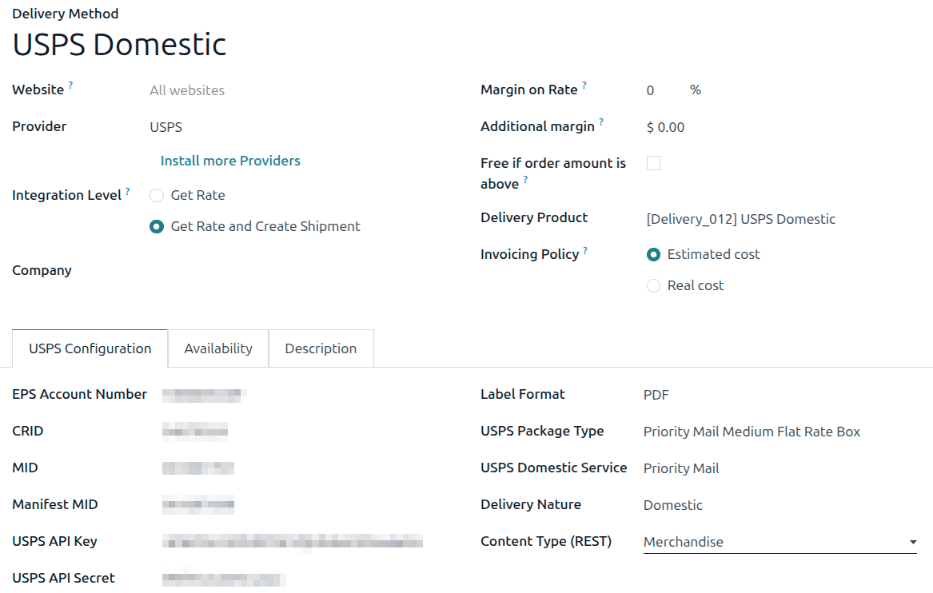
Informações gerais
The fields at the top of the delivery method form configure how the method operates in Odoo. In the Provider field, select USPS from the drop-down menu if it is not already selected.
The remaining fields in this section are general to all delivery providers. For details on how to fill them out, see third_party_shipper.
USPS Configuration tab
The options in the USPS Configuration tab are used to connect the method to a USPS account and to configure the delivery details associated with it.
Fill out the following fields in the form:
EPS Number: The Enterprise Payment System (EPS) account number identifies the payment account and is used for electronic funds transfers. After a payment account is added in the COP (Customer Onboarding Portal) tool, the EPS number will display, or it can be retrieved from the USPS Business Customer Gateway.
CRID: The CRID is a number that identifies the physical business address across all USPS systems and applications.
MID: Fill in the Master Mailer ID listed in the COP (Customer Onboarding Portal).
Manifest MID: Fill in the Label Mailer ID listed in the COP (Customer Onboarding Portal).
USPS API Key: Enter the Consumer Key credential for the app created in the USPS COP (Customer Onboarding Portal) tool.
USPS API Secret: Enter the Consumer Secret credential for the app created in the USPS COP (Customer Onboarding Portal) tool.
Label Format: Select the file format that generated labels should use.
USPS Package Type: Select or create the package type to use for shipping.
USPS Domestic Service or USPS International Service: Select the service level that should be used to generate shipping labels.
Delivery Nature: Select whether the delivery method is Domestic or International.
Content Type: Select the type of content that will be shipped in packages with this delivery method.
In the Options section, configure the following fields:
Domestic Rating Indicator or International Rating Indicator: Select the rating indicator that works best for shipping needs. USPS uses specific indicators, pricing groups, and automated classification systems to distinguish between domestic and international shipments for rating purposes. These systems help ensure accurate postage calculations based on factors such as destination, package weight, dimensions, and selected mail class.
Processing Category: Select a packaging processing category.
Generate Return Label: For domestic shipments only. Select this checkbox to automatically generate a return label when the delivery is validated.
Turn on the USPS delivery method
After the USPS connection is set up, use the smart buttons at the top of the form to publish, turn on production mode, or activate debug logging.
Unpublished / Published: Determines whether the delivery method is available on the eCommerce website.
Test Environment / Production Environment: Determines whether the delivery method creates Test labels, which are canceled immediately, or Production labels, which are real shipping labels charged to the USPS account.
No Debug / Debug Requests: Determines whether API requests and responses are logged in Odoo (turn on developer mode and go to ).