Alertas
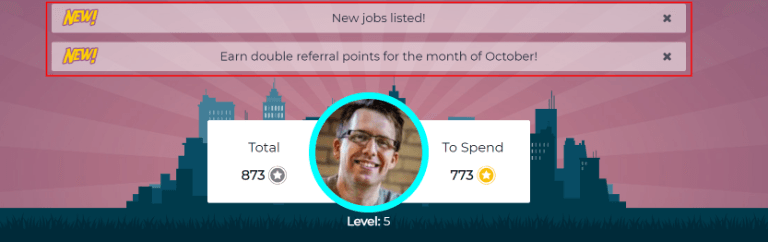
Na aplicação Referrals, é possível postar uma mensagem, também referida como um alerta, no topo do painel para compartilhar informações importantes com os usuários.
Os alertas permanecem no painel principal Referrals pela quantidade de tempo especificada configurada no alerta individual.
Criar um alerta
Apenas usuários com direitos de acesso Administrator no app Recruitment podem criar alertas. Para adicionar um novo alerta, navegue para .
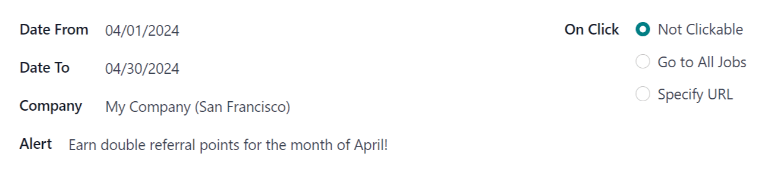
Clique em Novo para abrir um formulário de alerta em branco. Digite as seguintes informações no formulário:
Date From: the date the alert starts. On this date, the alert is visible on the dashboard.
Date To: the date the alert ends. After this date, the alert is hidden from view.
Company: the current company populates this field, by default. To modify the company the alert should be displayed for, select the desired company from the drop-down menu in this field.
Se este campo permanecer em branco, o alerta fica visível para todos com acesso ao app Referrals.
If a company is specified, only users within that company (who also have access to the Referrals app) see the alert. This field only appears in a multi-company database.
Alert: enter the text for the alert. This message appears inside the alert banner on the main Referrals app dashboard.
On Click: there are three options for the alert. Click the radio button next to the desired selection. The options are:
Not Clickable: the alert only displays text, there is no link to click.
Go to All Jobs: the alert contains a link that, when clicked, navigates to the website with all the job positions that are currently posted.
Specify URL: the alert contains a link to a specific URL that, when clicked, navigates to that URL. When selected, a URL field appears below the On Click section. Enter the desired URL in that field.
Notificar usuários
Além de postar um alerta no app Referrals, os usuários podem ser contatados diretamente por email, em vez de aguardar que os usuários visualizem o alerta quando abrirem o app Referrals.
Depois de criar um alerta <referrals/create-alert>, clique no botão Send Mail acima do formulário de alerta. Isso faz com que uma janela pop-up Send Mail seja carregada.
Os usuários atualmente configurados preenchem o campo User, e o Subject é preenchido com New Alert In Referrals App, por padrão.
O Body é preenchido com A new alert has been added to the Referrals app! Check your dashboard now!, com a palavra dashboard vinculada ao painel do app Referrals.
Faça as modificações desejadas no email e clique em Send.
Ignorar um alerta
É possível ignorar um alerta se um usuário não quiser ver um alerta específico novamente.
Para descartar um alerta, clique no ícone fa-times (remove) no lado direito do alerta no painel do app Referrals para remover o alerta.
Isso impede que o alerta apareça novamente, mesmo ao abrir o app Referrals pela primeira vez em uma nova sessão.