Páginas
O Odoo permite que você crie <website/pages/page_creation> diferentes tipos de páginas da web, inclusive com a ajuda da IA <website/pages/ai-generator>, as publique <website/pages/un-publish-page> e defina sua estrutura e visibilidade configurando as propriedades da página <website/pages/page_properties>. As páginas podem ser duplicadas <website/pages/duplicate-page>, deletadas <website/pages/delete-page> e redirecionadas <website/pages/URL-redirection>.
Páginas estáticas, como a página inicial ou páginas personalizadas <website/pages/page_creation>, contêm conteúdo fixo que não muda dinamicamente. Você pode criar manualmente essas páginas, definir suas URLs e adaptar suas propriedades <website/pages/page_properties> conforme necessário.
Páginas dinâmicas, por outro lado, exibem conteúdo que muda automaticamente com base nos dados do banco de dados e na interação do usuário (por exemplo, filtragem). Elas são geradas automaticamente pelo Odoo, por exemplo, ao instalar um aplicativo ou módulo (por exemplo, /shop ou /blog) ou ao publicar um novo produto ou post do blog. Páginas dinâmicas são gerenciadas de forma diferente das páginas estáticas.
Criação de páginas
As páginas do site podem ser criadas a partir do frontend e do backend.
To create a new website page:
Either open the Website app, click New fa-caret-down in the top-right corner, then select Page;
Or go to and click New.
In the New Page pop-up, select a template. Templates are grouped by type:
Basic: Multi-purpose page. A blank page is also available to start from scratch.
About: Information about the brand and company.
Landing Pages: Summary of company content and information.
Gallery: Photos and media showcase.
Services: Overview of the services offered by the company.
Pricing Plans: Overview of the subscriptions and prices.
Team: The people behind the company.
Custom: Custom-created templates. To add a custom template, open the page you want to save as a template and edit the page's properties <website/pages/page_properties>.
In the New Page pop-up:
Enter a Page Title. This title is used in the menu and the page's URL.
Disable Add to menu if the page should not appear in the menu.
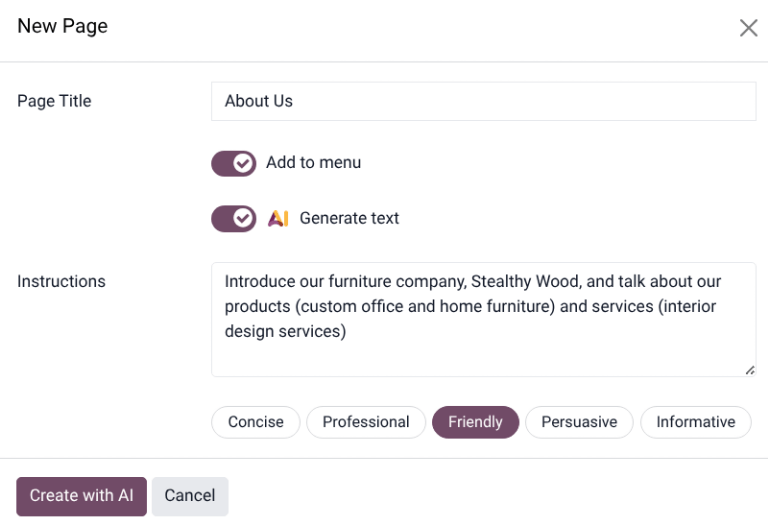
Enable Generate text to use the AI <website/pages/ai-generator> tool to build the page.
Click Create.
If needed, customize the page's content and appearance using the website editor or translate <translate/translate> it, then click Save.
Publish <website/pages/un-publish-page> the page.
Gerador de páginas web com IA
Para gerar conteúdo usando IA ao criar uma nova página <website/pages/page_creation>, siga estas etapas:
After choosing a template, in the New Page pop-up, toggle the AI Generate Text switch.
In the Instructions field, enter a short description of the page being created. This should include a few important keywords that define the page's focus and scope.
Select one of the tone options for the page, such as Concise, Professional, Friendly, Persuasive, or Informative.
Click Create with AI. It may take a few moments for the webpage to load.
Publicar/desfazer a publicação de páginas
As páginas precisam ser publicadas para serem visíveis aos visitantes do website. Para publicar ou despublicar uma página, acesse-a e alterne o botão no canto superior direito de Não Publicada para Publicada, ou vice-versa.

Propriedades da página
Para modificar as propriedades de uma página estática <website/pages/page_type>, acesse a página que deseja modificar, depois vá para , onde as seguintes propriedades podem ser adaptadas:
Page Title: Modify the page's title.
Page URL: Modify the page URL in the field. In this case, you can redirect the old URL to the new one if needed. To do so, enable Redirect Old URL, then select the Type of redirection <website/pages/URL-redirection>:
301 Moved permanently: to redirect the page permanently.
302 Moved temporarily: to redirect the page temporarily.
In Menu: Disable if the page should not appear in the menu. Click the fa-arrow-right Edit Menu link to modify the menu.
Is Homepage: Enable if the static page should serve as the homepage of the website.
Published: Enable it to publish the page.
Publishing Date: To publish the page at a specific date and time, click the field, set the date and time, then press Enter or click Apply to validate the selection.
Indexed: Disable if the page should not appear in search engine results.
Visibility: Select who can access the page:
Public: Everyone can access the page.
Signed In: Only signed-in users can access the page.
Restricted Group: Select the user access group(s) in the Authorized Groups field.
With Password: Type the password required to access the page in the Password field.
Is a Template: Toggle the switch to save the page as a template. It is now available in the Custom category when creating a new page <website/pages/page_creation>.
Duplicação de páginas
Para duplicar uma página, acesse a página e vá para , depois clique em Duplicar Página. Na janela Confirmação, digite um Nome da Página e clique em Ok. Por padrão, a nova página não é publicada; é adicionada após a página duplicada originalmente no menu. Use o editor de menu para removê-la do menu ou alterar sua posição.
Excluir páginas
Para excluir uma página, proceda do seguinte modo:
Access the page, then go to and click Delete Page.
The Delete Page pop-up shows all links referring to the page you want to delete, organized by category. To ensure website visitors do not land on an error page, update all links on the website that refer to the page. To do so, expand a category, then click on a link to open it in a new window. Alternatively, you can set up a redirection <website/pages/URL-redirection> for the deleted page.
Once you have updated the links (or set up a redirect <website/pages/URL-redirection>), tick the I am sure about this. checkbox, then click Delete.
Mapeamento de redirecionamento de URL
O mapeamento de redirecionamento de URL envolve enviar visitantes e mecanismos de busca para uma URL diferente da que eles solicitaram inicialmente. Esta técnica é usada, por exemplo, para evitar links quebrados ao deletar uma página <website/pages/delete-page>, modificar sua URL <website/pages/page_properties> ou migrar o site de outra plataforma para um domínio Odoo. Também pode ser usada para melhorar o seo.
Para acessar redirecionamentos de URL existentes e criar novos, ative o modo de desenvolvedor e vá para . Para criar um redirecionamento, clique em Novo na visualização Reescrever, depois adapte os campos:
Name: Enter a name to identify the redirect.
Action: Select the type of redirection:
404 Not found: Visitors land on a 404 error page when they try to access an unpublished or deleted page.
301 Moved permanently: for permanent redirections of unpublished or deleted static pages <website/pages/page_type>. The new URL is shown in search engine results, and the redirect is cached by browsers.
302 Moved temporarily: for short-term redirections, for example, if you are redesigning or updating a page. The new URL is neither cached by browsers nor shown in search engine results.
308 Redirect / Rewrite: for permanent redirections where the original URL is rewritten (typically used for dynamic pages <website/pages/page_type>). The URL is renamed; the new name appears in search engine results and is cached by browsers. Use this redirect type to rename a dynamic page, for example, if you wish to rename /shop into /market.
URL from: Enter the URL to be redirected (e.g., /about-the-company) or search for the desired dynamic page <website/pages/page_type> and select it from the list.
URL to: For 301, 302, and 308 redirects, enter the URL to be redirected to. If you want to redirect to an external URL, include the protocol (e.g., https://).
Website: Select a specific website.
Active: Toggle the switch off to deactivate the redirection.
Sequence: To define the order in which redirections are performed, e.g., in the case of redirect chains (i.e., a series of redirects where one URL is redirected to another one, which is itself further redirected to another URL).