Relatório de estoque
Use o relatório de estoque no Odoo Inventário para obter uma lista detalhada de todos os produtos armazenados, incluindo os reservados, comprados e em transição, bem como os entregues aos clientes.
Para acessar o relatório de estoque, vá para .
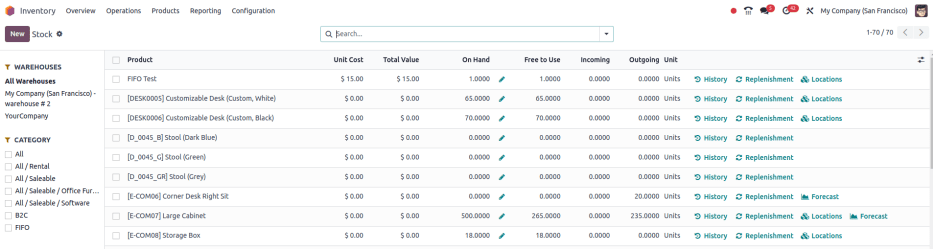
Navegar pelo relatório
No relatório de estoque, a barra lateral esquerda inclui vários agrupamentos para restringir o que está sendo mostrado. Os agrupamentos padrão são Armazéns, que filtra os produtos por armazéns específicos, e Categoria, que mostra os produtos em uma categoria de produto selecionada.
No relatório, as colunas representam:
Product: name of the product.
Unit Cost: average inventory valuation per unit, adjusted based on the cost to purchase and/or manufacture the product.
Total Value: Total inventory valuation of the product, calculated by multiplying unit cost by on-hand quantity.
Veja também:Compute average cost inventory valuation per unit <inventory/avg_cost/formula>
On Hand: current quantity of products. Click the fa-pencil (pencil) icon to modify the on-hand quantity.
Free to Use: on-hand quantity that are not reserved for delivery or manufacturing orders, and are available to sell or use.
Incoming: items expected to arrive at the warehouse. Number of products is based on quantities in confirmed purchase orders.
Outgoing: items expected to leave the warehouse or be consumed in manufacturing orders. Number of products is based on quantities in confirmed sales or manufacturing orders.
Clique nos botões à direita de cada item de linha para acessar informações adicionais:
History: access the stock move history of the product, displaying information about the quantity and description of why the product was moved from one location to another.
Replenishment: access the reordering rules page for the product to create or manage methods of procuring the product.
Locations: break down of on-hand quantity at multiple storage locations. Only available when the product is stored in multiple locations.
Forecast: access the forecasted report to view on-hand, incoming, and outgoing quantities. Report also contains links to confirmed purchase, sales, or manufacturing orders. Only available when there are confirmed sales, purchase, or manufacturing orders for the product.
Opções de pesquisa
A seção Filtros permite que os usuários pesquisem entre filtros predefinidos e personalizados para encontrar registros de estoque específicos.
Published: display products published on the website. Only available with the Website app installed.
Available in POS: display products available through the Point of Sale app.
Available in Self: display products available in self order through the Point of Sale app. Appears in the search because the Available in Self Order checkbox was ticked in the Point of Sale section of a product form's Sales tab. The option is only available when the Available in POS checkbox is ticked.
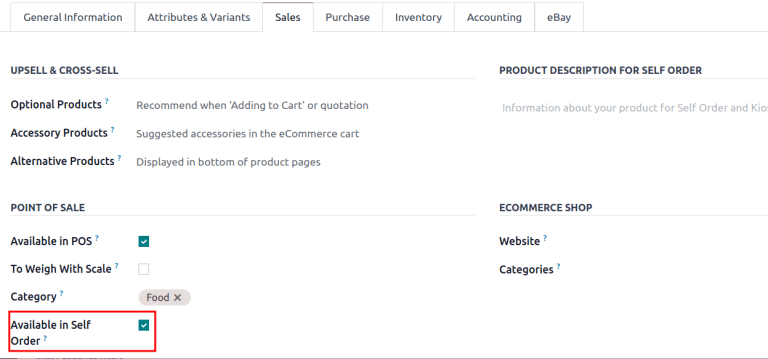
Not available in Self: display products available in PoS, but not available in self order.
Veja também:
Can be Sold: display products that can be sold to customers. Appears in the search because the Can be Sold checkbox is ticked on the product form.
Can be Purchased: display products that can be bought from vendors. Appears in the search because the Can be Purchased checkbox is ticked on the product form.
Can be Recurring: show subscription products, indicated by ticking the Recurring checkbox on the product form. Only available with the Subscription app activated.
Can be Rented: show products that can be loaned to customers for a certain time. Appears in the search because the Can be Rented checkbox was ticked on the product form. Only available with the Rental app installed.
Can be Subcontracted: display products that can be produced by a third-party manufacturer. Available only with the Manufacturing app installed.
Can be Expensed: show items that can be expensed. Only available with the Expenses app installed.
Veja também:Agrupar por
A seção Agrupar por permite que os usuários adicionem agrupamentos predefinidos e personalizados aos resultados da pesquisa.
Product Type: group items by product type.
Product Category: group items by product category. To configure these, go to .
POS Product Category: group items by point of sale product categories <pos/products/categories>.
Favoritos
Para salvar os filtros e grupos aplicados atualmente, de modo que as mesmas informações possam ser facilmente acessadas após o fechamento desta página, clique em Salvar pesquisa atual.
Opcionalmente, marque a caixa de seleção Filtro padrão para tornar essa visualização atual o filtro padrão ao abrir o relatório de ações. Ou marque a caixa de seleção Compartilhado para tornar a opção de pesquisa disponível para outros usuários.
Por fim, clique no botão Salvar.