Criação de tarefas
As tarefas no Odoo Projeto podem ser criadas manual ou automaticamente, inclusive a partir de e-mails ou formulários do site.
Criação manual de tarefas
Abra o app Projeto e selecione o projeto pretendido. Crie uma nova tarefa executando uma das seguintes acções:
Clicking the fa-plus (plus) button in the upper left corner. This creates a new task in the first stage of your Kanban view.
Pressing the fa-plus (plus) button next to the Kanban stage name. This creates a new task in this Kanban stage.
Preencha o Título da tarefa e adicione um ou mais Responsáveis, depois clique em Adicionar.
Configuração de tarefas
Clique na tarefa para a abrir. O formulário de tarefa inclui os seguintes campos que podem ser preenchidos:
Task Title: title of the task.
fa-star-o (Star): click the fa-star-o (star) icon to mark the task as high priority. The icon will turn yellow. Click it again to remove the high priority.
Project: the project that this task belongs to.
Assignees: the person(s) in charge of handling the work on this task.
Tags: custom labels allowing to categorize and filter your tasks.
Customer: the person or company that will be billed for this task. This field only appears in tasks that belong to billable projects.
Sales Order Item: this can be either the sales order that was used to create this task, or a sales order that was linked to this task manually. This field only appears in tasks linked to billable projects.
Allocated Time: the amount of time that the work on this task is expected to last, tracked by timesheets.
Deadline: the expected end date of the task. Click the Deadline field to select the task's end date in the dropdown calendar. To define the task's duration, including its start and end dates (and optionally specific times), click the fa-calendar-plus-o (fa-calendar-plus-o) icon in the dropdown calendar, select the dates and times, then click Apply to save.
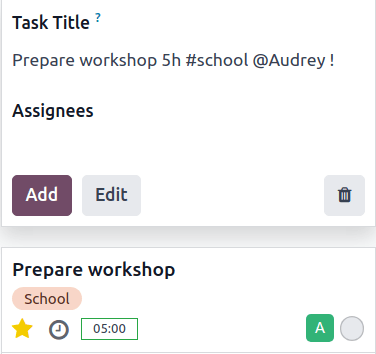
Além de utilizar o formato correto, siga esta ordem: o nome da tarefa, seguido do tempo alocado, dos marcadores, do responsável e, por fim, da prioridade.
Por exemplo, se pretender criar uma tarefa chamada "Preparar workshop", alocar 5h horas, adicionar o marcador "Escola", atribuir à Audrey e definir a sua prioridade como Alta, introduza o seguinte título de tarefa: Preparar workshop 5h #escola @Audrey !
Criar tarefas a partir de um alias de e-mail
Essa funcionalidade permite que as tarefas de projeto sejam criadas automaticamente quando uma mensagem de e-mail é entregue a um endereço de e-mail designado.
Para o configurar, abra o aplicativo Projeto e clique no ícone fa-ellipsis-v (três pontos verticais) junto ao nome do projeto pretendido. Selecione Definições, depois abra a aba Definições.
Preencha o campo Criar tarefas enviando um e-mail para da seguinte forma:
Section of the alias before the @ symbol: type the name of the email alias, e.g. contact, help, jobs.
Domain: in most cases, this is filled in by default with your domain.
Accept Emails From: refine the senders whose emails will create tasks in the project.
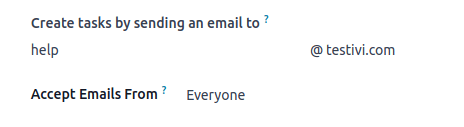
Uma vez configurado, o alias de e-mail pode ser visto abaixo do nome do projeto no painel Kanban.
Quando um e-mail é enviado para o alias, o e-mail é automaticamente convertido em uma tarefa de projeto. Aplicam-se as seguintes regras:
The email sender is displayed in the Customer field.
The email subject is displayed in the Task Title field.
The email body is displayed in the Description field.
The whole content of the email is additionally displayed in the chatter.
All the recipients of the email (To/Cc/Bcc) that are Odoo users are automatically added as followers of the task.
Criar tarefas a partir de um formulário do site
Se o app Site estiver instalado na sua base de dados, você pode configurar qualquer formulário no seu site para acionar a criação de tarefas num projeto.
Go to the website page where you wish to add the form and add the Form building block.
In the website editor, edit the following fields:
Action: select Create a Task.
Project: choose the project that you want the new tasks to be created in.
Customize the form <website/building_blocks/form>.
Ao submeter o formulário, é criada automaticamente uma tarefa de projeto. O conteúdo da tarefa é definido pelos campos correspondentes do formulário.
Website forms <website/building_blocks/form>