Formas de proteção contra spam
Cloudflare Turnstile <website/spam_protection/cloudflare-turnstile> e Google reCAPTCHA v3 <website/spam_protection/google-recaptcha> protegem formulários de website contra spam e abuso. Eles tentam distinguir entre envios humanos e de bot usando desafios não interativos baseados em telemetria e comportamento de visitantes.
Configuração do Turnstile da Cloudflare
Na Cloudflare
In the dashboard's navigation sidebar, go to .
On the Overview page, click fa-plus Add widget.
Add a Widget name to easily identify it.
Click fa-plus Add Hostnames, enter a custom hostname (e.g., example.com or subdomain.example.com), then click Add twice.
Select a Widget Mode:
The Managed mode is recommended, as it allows Turnstile to prompt visitors to confirm they are human when necessary.
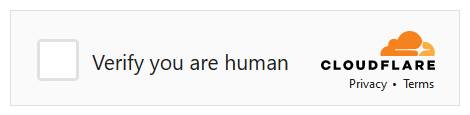
For the Non-interactive and Invisible modes, visitors are never prompted to interact. In Non-interactive mode, a loading widget can be displayed to warn visitors that Turnstile protects the form; however, the widget is not supported by Odoo.
Se a verificação do Turnstile falhar, os visitantes não podem enviar o formulário e é exibida a seguinte mensagem de erro:

Click Create.
As chaves geradas são então exibidas. Para sua conveniência, deixe a página aberta, pois a seguir é necessário copiar as chaves no Odoo.
No Odoo
From the database dashboard, open the Settings app. Under Integrations, enable Cloudflare Turnstile, then click Save.
Open the Cloudflare Turnstile <website/spam_protection/cloudflare> page, copy the Site Key, and paste it into the CF Site Key field in Odoo.
Open the Cloudflare Turnstile page, copy the Secret Key, and paste it into the CF Secret Key field in Odoo.
Click Save.
Configuração do reCAPTCHA v3
No Google
Enter a Label for the website, e.g., example.com.
Leave the reCAPTCHA type set to Score based (v3).
Enter one or more Domains (e.g., example.com or subdomain.example.com).
Under Google Cloud Platform, a project is automatically created or selected if one already exists for the logged-in Google account. Click the field to select a project manually or rename the automatically created project.
Agree to the terms of service.
Click Submit.
As chaves geradas são então exibidas. Para sua conveniência, deixe a página aberta, pois a seguir é necessário copiar as chaves no Odoo.
No Odoo
From the database dashboard, open the Settings app. Under Integrations, activate Enable reCAPTCHA.
Não desinstale o módulo Integração Google reCAPTCHA, pois isso também removeria muitos outros módulos.
Open the Google reCAPTCHA <website/spam_protection/google-recaptcha> page, click COPY SITE KEY, and paste it into the Site Key field in Odoo.
Open the Google reCAPTCHA page, click COPY SECRET KEY, and paste it into the Secret Key field in Odoo.
Change the default Minimum score (0.70) if necessary, using a value between 0.00 and 1.00. The higher the threshold is, the harder it is to pass the reCAPTCHA, and vice versa.
Click Save.
Você pode notificar os visitantes que o reCAPTCHA protege um formulário <website/building_blocks/form>. Para fazer isso, navegue até o formulário e abra o editor de website. Em seguida, clique em algum lugar do formulário, vá para a aba Estilo e, na seção Bloco, ative Mostrar política ReCAPTCHA.
