Recebimentos
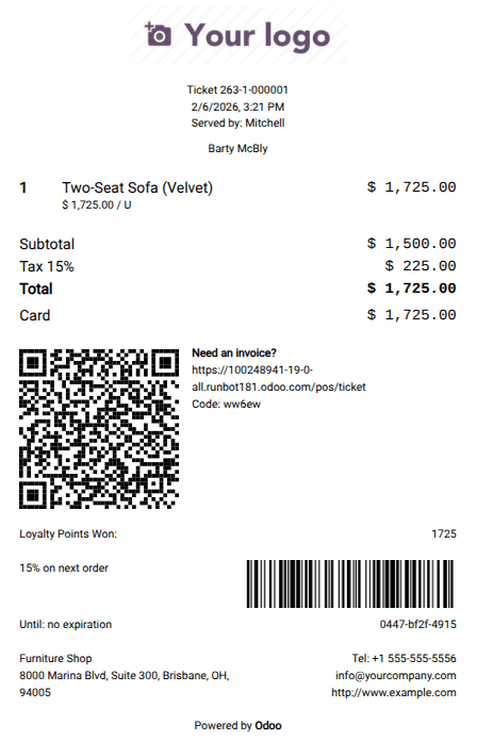
POS receipts display the following elements:
|
|
Configuração
Para configurar recibos do PDV, vá para e role para baixo até a seção Faturas e Recibos.
To customize the header and footer, enable the Custom Header & Footer setting and enter the information to be printed on the receipts in both fields.
To print receipts automatically upon payment confirmation, enable the Automatic Receipt Printing setting.
To print receipts that don't display product prices, enable the Basic Receipt setting.
To allow for sending receipts via email, SMS, or WhatsApp from the Receipt <pos/use/sell> screen, enable the SMS Enabled and/or WhatsApp Enabled setting(s).
pos/restaurant/bills
Reimpressão de recibo
Para reimprimir um recibo, siga os próximos passos:
Access the POS register <pos/use/open-register>.
Click Orders on the POS interface.
Open the dropdown selection menu next to the search bar, and set the filter to Paid.
Select the desired order and click fa-print Print Receipt.