Assinaturas
The Odoo Subscriptions app is designed to manage recurring revenue through subscription-based products or services. It supports automated invoicing, renewal management, and customer lifecycle tracking.
Subscriptions can be created manually or automatically through online sales, with varying options for recurring billing. The app integrates with other Odoo modules such as Invoicing, CRM, Sales, and Helpdesk to support end-to-end subscription workflows.
Entender a atividade de gerenciamento principal para assinaturas
Fazer upsell de uma assinatura
Ofereça mais valor para assinantes atuais na mesma ordem de venda
Encerrar uma assinatura
Personalize modelos de planos de assinatura adequados a várias ofertas de produtos
Integração de eCommerce
Ofereça produtos de assinatura através da sua loja Odoo eCommerce
Set up recurring plans
To get started with subscription products in Odoo, recurring plans (previously known as recurrence periods) must first be configured.
Recurring plans are the time windows in which subscriptions are active before they renew again. While a subscription is active, customers receive products or services, and may also have access to additional benefits such as support desk triage. In terms of payment, these recurring plans designate how often the customer is charged in order to maintain the benefits of their subscription.
To configure recurring plans, go to .
By default, the Subscriptions app includes a number of common recurring plans already available, such as Monthly and Yearly.
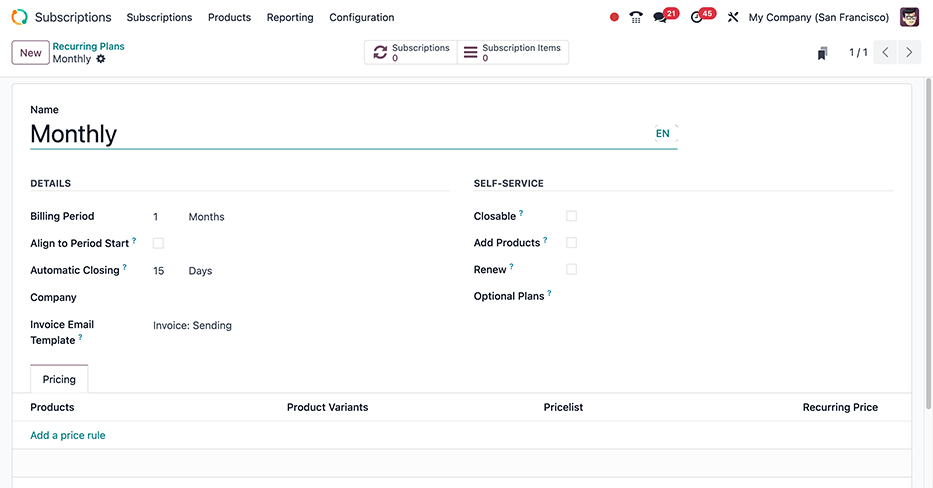
Create a new recurring plan by clicking New on the Recurring Plans dashboard, to reveal a blank form where the plan Name, DETAILS, SELF-SERVICE and Pricing field values are specified.
Essa limitação existe para evitar pedidos de vendas que gerariam faturas diárias.
DETAILS section
After giving the recurring plan a suitable Name (e.g. Monthly, Bi-weekly, Quarterly, etc.), proceed to the form's DETAILS section to fill out the following configuration fields:
Billing Period: determines the frequency with which the subscription is billed. Set the unit of time (Weeks, Months, or Years) in the drop-down menu and the numerical value in the corresponding text field.
Automatic Closing: a numerical value, in days, where the subscription is set to close automatically if payment is not made.
Align to Period Start: sets new and recurring subscription plans to bill on the first day of the next Billing Period. When a subscription plan is purchased in the middle of a billing period, the invoice shows a reduced cost. Setting a custom period start dates (such as the 5th of each month) requires custom development and is not available by default.
Company: optional assignment, if the database has Multiempresa functionality enabled. Assigning this value will make the recurring plan available for that company's location, specifically.
Invoice Email Template: assigns a specific email template to be used in subscriptions invoicing communications. The default assignment here is Invoice: Sending which contains various dynamic fields that autopopulate specific variables across the Subject field and Content tab, such as the customer's name, invoice number, total amount invoiced, etc.
The Invoice: Sending email template is accessible by clicking the fa-arrow-right (Internal link) that appears after hovering over the Invoice Email Template drop-down field in the Recurring Plans form.
SELF-SERVICE section
The following optional fields enable customers to take administrative actions on their own subscriptions. Enabling any of these options may decrease customer service request volume or increase customer lifetime value (LTV).
Closable: checking this box will give customers the power to close their own subscriptions. Consider enabling this option to reduce customer service requests and improve the overall customer experience; customers that can manage their own subscriptions in this way helps offload tedious tasks for sales and support teams, and reduces the likelihood of negative reviews.
Add Products: allows customers to add new products or edit existing product quantities to their recurring sales orders, thereby enabling customer-driven upselling. When enabled, Upsell quotations are generated in Odoo whenever a customer performs a quantitative adjustment on their sales order product lines.
Renew: enabling this allows customers to manually create a Renewal quotation for their subscription.
Optional Plans: adding values here from the drop-down field menu enables customers to switch their subscription plans, in which case a new subscription quotation or renewal quote is created to accommodate the change request.
Pricing tab
Make product-specific pricing adjustments, as part of the recurring plan, by adding them to the Pricing tab order lines. Sequentially add the Products, along with any respective Product Variants, and then assign a Pricelist (if available) and a Recurring Price.
Botões inteligentes
No topo do formulário individual Planos Recorrentes, há dois botões inteligentes para auxiliar na navegação das fontes de receita recorrente anexadas ao plano:
Subscriptions: shows the number of active subscriptions sales orders that fall under the recurring plan. Clicking the button leads to a tabled list view, where each row hyperlinks to a respective subscriptions sales order.
Subscription Items: lists all the individual recurring subscription services that are active, in an itemized fashion. Subscription and Customer values will repeat if the customer ordered multiple subscriptions on the same sales order.
Configuração do formulário do produto
With recurring plans set up, create a subscription product by navigating to , and click either an existing product to edit, or make a new one by clicking New to open up the subscription product's form.
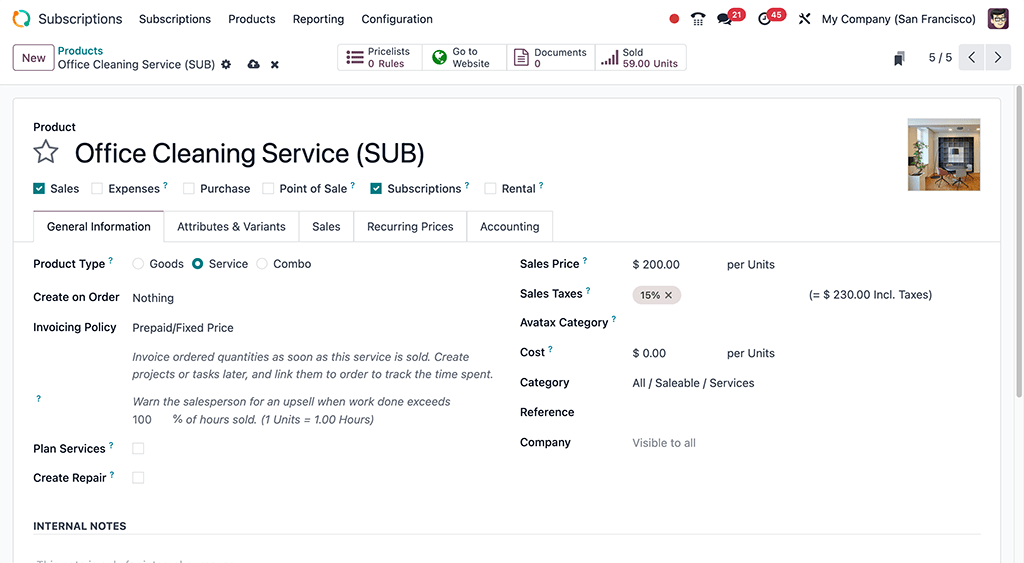
On the product form, configure the following items in the General Information tab so the subscription product will function correctly:
Product type: this value is typically set to a Service, however other product types may be used depending on the purpose of the subscription (e.g., physical product box subscriptions, eLearning course with supplemental physical goods, etc.).
Política de faturamento: set this value to when the customer should be charged for their subscription.
Unit of Measure: how the product should be counted in Odoo, for stock purposes. For most subscriptions, the UoM (Unit of Measure) will be Units.
Sales Price: enter the recurring cost of the subscription that the customer will pay per recurrence period.
Optionally set up information on the Attributes & Variants tab if the subscription contains multiple choices for customers (i.e. food delivery, tailored fashion boxes, etc.).
In the Recurring Prices tab, clarify the pricing options for the subscription. For each option available, click Add a price rule to add a new row.
Por último, se a assinatura for vendida no site eCommerce, clique no botão inteligente fa-globe e no cabeçalho da página do produto, clique no controle deslizante cinza de Não Publicado para o status Publicado verde.
Create a subscriptions quotation
Manually create a new customer subscription by navigating to either the or app dashboards, and then clicking New.
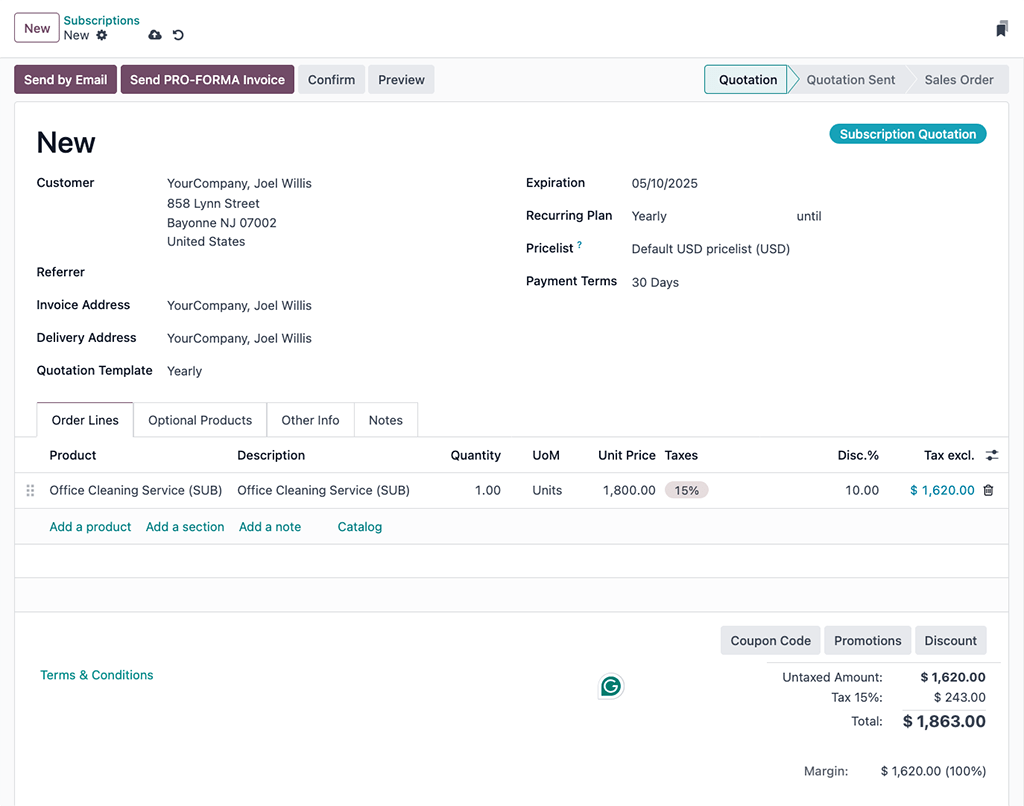
On the quotation form, fill in the necessary fields such as Customer and Recurring Plan, as well as the Order Lines tab.
Optionally, specify a:
Quotation Template, if one is readily available to help populate the form fields.
Expiration date, to indicate when the subscription offer is no longer valid.
Pricelist, if one is available and appropriate to use (i.e., summer sale discount, VIP customer, etc.).
Payment Terms, to set a specified time window for when the subscription must be paid. This is not to be confused for when the quotation is confirmed and becomes a sales order, to where, payment may then be obtained immediately or within a certain amount of days, weeks, months, etc.
Confirmação
Send the quotation to the customer for confirmation by clicking on Send By Email, or confirm it immediately by clicking on Confirm.
Se uma Assinatura Online ou Pagamento Online for necessária para confirmar a cotação, defina as caixas de seleção ao lado de uma (ou ambas) destas etiquetas na aba Outras Informações, sob a seção VENDAS.